CPanel Email Security
Introduction
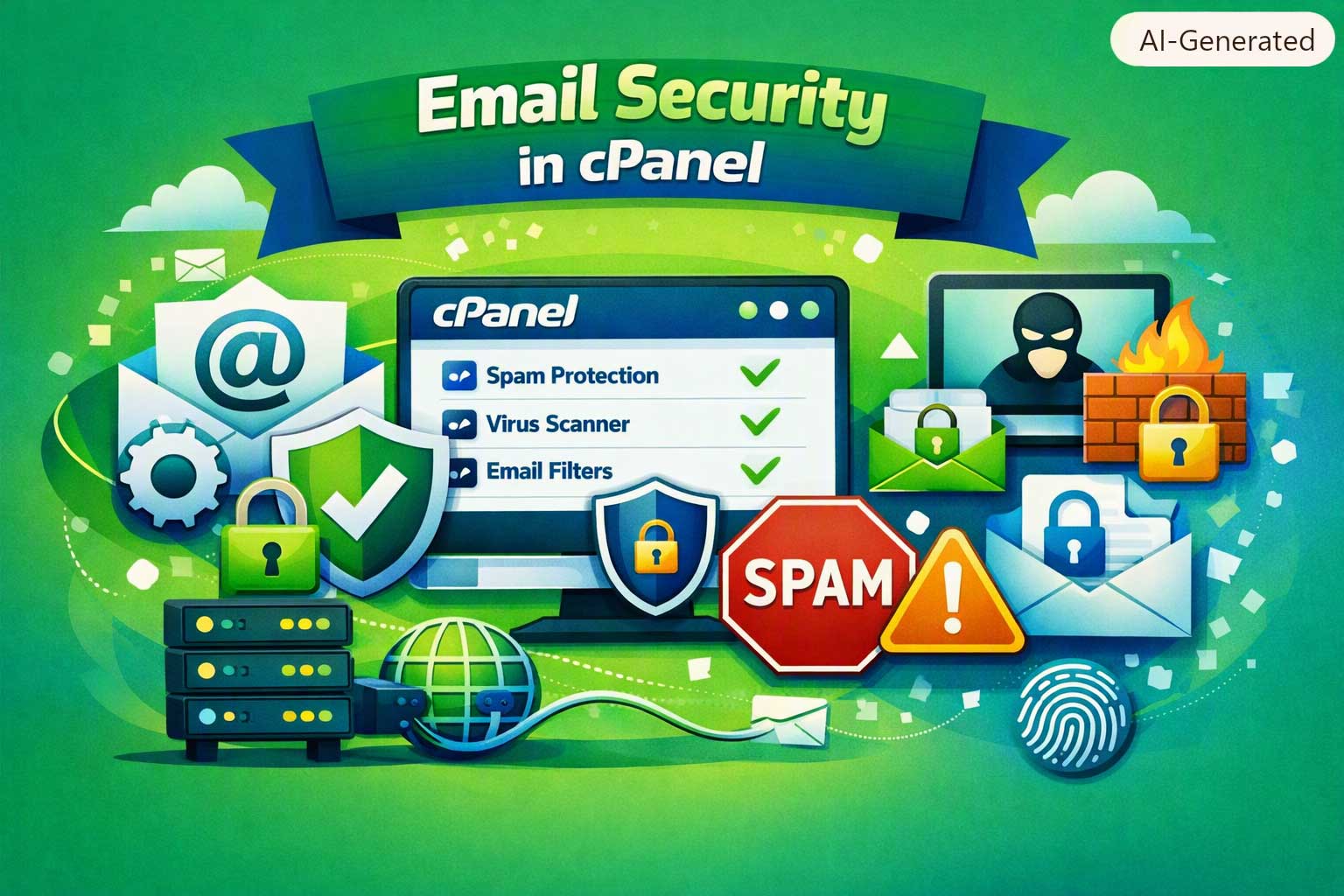
One of the most common headaches website owners run into is their emails landing straight in the recipient’s spam folder — or worse, attackers hijacking their domain to send fraudulent messages. Fortunately, cPanel ships with built-in tools to lock down your email and prove its authenticity: SPF, DKIM, and DMARC records, plus spam-filtering via SpamAssassin. Here’s what each one does and how to set it up properly.
SPF: Who’s Allowed to Send on Your Behalf?
An SPF record is a DNS entry listing which servers are authorized to send mail for your domain. When a message comes in, the recipient’s server checks whether the sending server appears on your SPF list — if it doesn’t, the message may get flagged as suspicious.
Contact Us For More details
Turning it on in cPanel:
- Go to Email, then Email Deliverability.
- Find your domain and click Manage or Repair if the record is missing.
- cPanel will suggest a correct SPF record you can add straight to your DNS zone.
DKIM: A Digital Signature for Every Message
DKIM attaches an encrypted signature to every message leaving your domain, letting the recipient’s server confirm the content wasn’t tampered with in transit and genuinely came from you.
Turning it on in cPanel:
It’s typically enabled automatically when a domain is created — check its status and DNS record from the same Email Deliverability page.
DMARC: The Final Call on Suspicious Mail
DMARC builds on top of SPF and DKIM, telling receiving servers exactly what to do with messages that fail those checks — reject, quarantine, or let through — and gives you periodic reports on any spoofing attempts against your domain.
Turning it on:
From the same Email Deliverability page, check whether a DMARC record already exists. If not, add one manually via Zone Editor, in a format like:
v=DMARC1; p=quarantine; rua=mailto:[email protected]
Filtering Spam with SpamAssassin
cPanel bundles the SpamAssassin tool for catching suspicious incoming mail:
- Go to Email and open Spam Filters.
- Turn on Enable Spam Filters.
- Adjust the sensitivity score to your liking — lower values mean stricter filtering.
- Optionally route flagged messages straight into a Spam folder instead of the main inbox.
A Few More Security Tips
- Use strong, unique passwords, and turn on two-factor authentication wherever your mail client supports it.
- Check the Email Deliverability log periodically to catch any record issues early.
- Never share your email login with anyone you don’t fully trust.
- Keep the mail apps on your devices updated to close off security gaps.
FAQ
Not technically mandatory, but close to essential these days for landing in the inbox instead of spam — especially as Gmail and Outlook get stricter about checking them.
The Email Deliverability page in cPanel shows the status of each record and flags anything that needs fixing.
SPF confirms the sending server is authorized for the domain; DKIM confirms the message content itself hasn’t been altered, via a digital signature.
Better to start with “none” or “quarantine” to watch how things go, then move to “reject” once you’re confident legitimate mail won’t get blocked.
No — by default it only flags or relocates them to a spam folder. Deletion only happens if you configure it yourself.