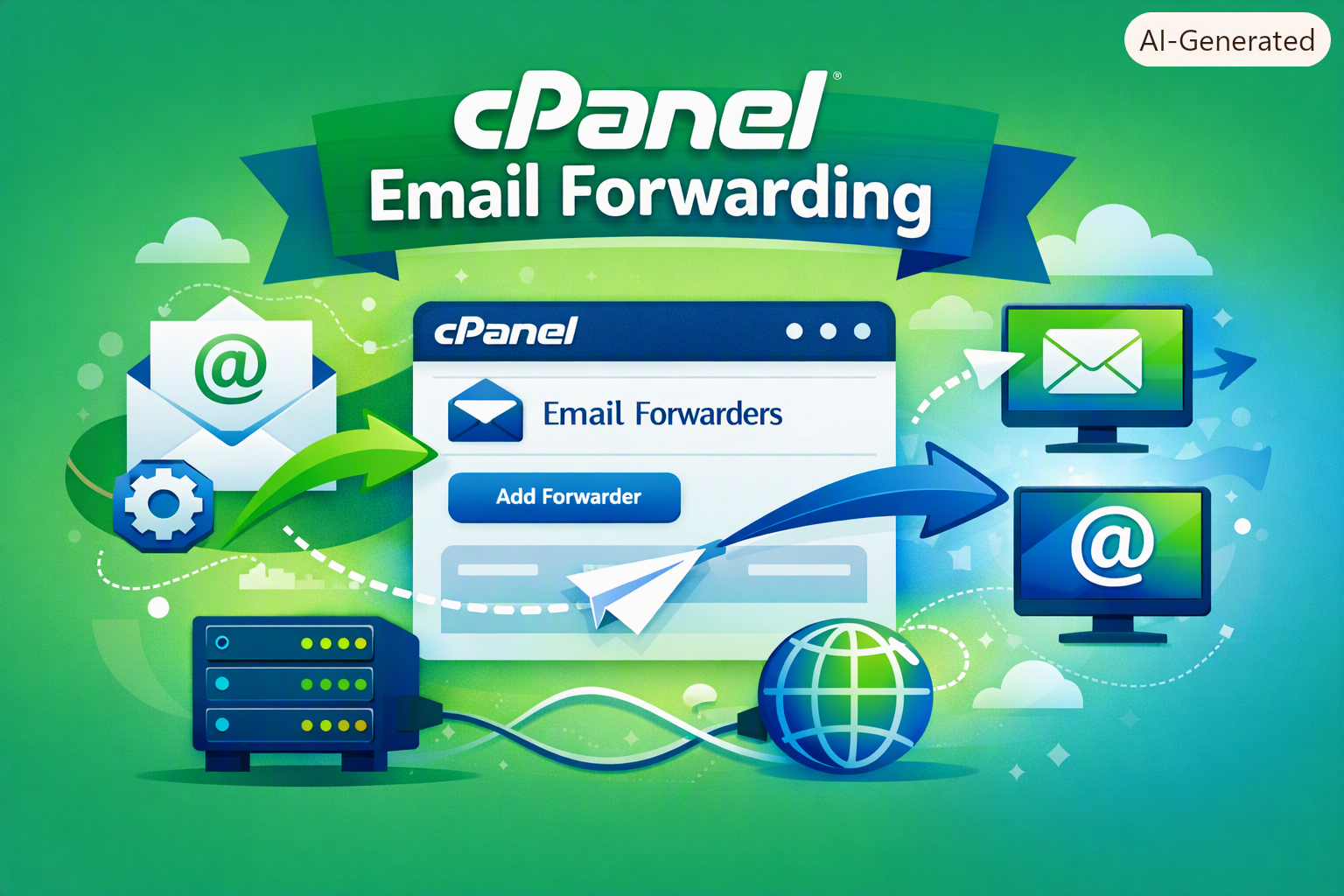
Email Forwarding in CPanel
Introduction
Email forwarding is one of cPanel’s most practical features — it automatically redirects messages sent to one address over to another, so you’re not stuck logging into multiple inboxes. It’s especially handy if you manage several addresses (sales@, support@, and so on) and want everything funneled into one place. Here’s how to set up each type of forwarding cPanel offers.
Why Bother with Forwarding?
- One inbox for everything — saves you from checking multiple accounts throughout the day.
- Smooth transitions when staff change — route a former employee’s mail to their manager so nothing gets lost.
- Handling marketing campaigns — send temporary or campaign-specific addresses straight to your main inbox.
- A safety net — forward a copy of messages elsewhere as a backup.
Contact Us For More Details
The Two Forwarding Types
1. Single-Address Forwarder
Redirects everything sent to one specific address (say, info@yourdomain.com) to another address — internal or external, like Gmail.
2. Domain Forwarder
Redirects every message sent to your domain, including addresses that don’t even exist, over to a completely different domain or address.
Setting Up a Forwarder
- Log in to cPanel.
- Under Email, open Forwarders.
- Click Add Forwarder.
- Type the address you want to forward into Address to Forward.
- Pick one of the options:
- Forward to Email Address — enter where the messages should land.
- Forward to a Failure Message — send an automatic bounce instead of forwarding.
- Discard — silently drop the messages, no reply sent.
- Pipe to a Program — advanced routing through a custom script.
- Click Add Forwarder to save it.
Setting Up a Domain Forwarder
- From the same Email section, choose Domain Forwarders.
- Click Create a New Domain Forwarder.
- Pick the source domain and destination domain.
- Save it, and everything sent to the source domain will forward automatically.
A Few Things to Watch For
- Don’t set up two accounts that forward to each other — that creates a loop and messages will simply fail to deliver.
- You can keep a copy in the original mailbox too, by adding extra Filters.
- Check the original inbox occasionally just to confirm forwarding is still behaving as expected.
FAQ
Yes — create multiple Forwarders for the same source address, and a copy of each message will reach every destination you’ve set.
Not by default — standard forwarding just relays the message. Add a Filter rule if you want to keep a copy too.
Yes, forwarding works with any external email address regardless of provider.
A Forwarder handles one specific address; a Domain Forwarder redirects every address on the whole domain at once.
Usually because the destination inbox is full, the message got flagged as spam, or there’s an accidental forwarding loop somewhere.